 Documentation


Working with PostgreSQL Subscriptions
In Database Tour, it is possible to configure logical replication between two PostgreSQL databases. For that, you need to create publication objects(s) in the source database, and subscription object(s) on the target side.
To work with subscriptions in PostgreSQL database, use the corresponding tab of the Object Browser.
In the list of subscriptions, disabled subscriptions are shown dimmed.
Creating Subscriptions
There are two ways of creating a subscription in Database Tour:
- Using specific interface. Switch to Subscriptions tab of the Object Browser and click New button
 . A new window will be opened with subscription options:
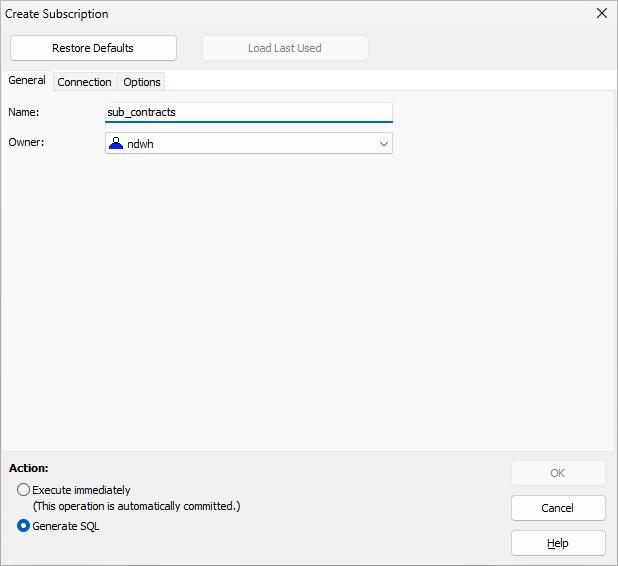
In the General tab, specify the subscription name. The current user will be the owner of the subscription; you can change the owner later by editing (altering) the subscription (see below).

In the Connection tab, specify the connection string to connect the publisher. You can import connection parameters (server/host, port, database, username) from the registered via FD interface PostgreSQL databases (if any) using Import button; the password must be entered manually, however.
After filling the connection parameters, click Refresh button to get the list of publications defined on the publisher side. Choose the needed publications to subscribe to.

In the Options tab, specify the subscription options. Read PostgreSQL documentation to get more details.
To reset settings, click Restore Defaults button.
If there were already subscriptions created or their SQL code generated in this application instance since the database was connected, you can quickly load the last used settings by clicking Load Last Used button.
Finally, you can choose either to generate SQL code for the subscription or execute the generated code immediately and create the subscription.
- Using SQL. Click New SQL Window button
 , or choose Query | New... menu, or press Ctrl+Q. The new SQL editor will be opened where you can write and execute the CREATE SUBSCRIPTION command. Complete the command code and click Execute button
  .
.
Notes
- For both ways, it is recommended to read the PostgreSQL documentation for better understanding subscription options and SQL syntax (if you choose SQL).
- Creating a publication must be done in auto-commit mode.
Deleting Subscriptions
To delete (drop) a subscription, select the needed object in the list of subscriptions and click Delete button.
To delete several subscriptions, right-click the list and choose Multiple Selection. Then select needed subscriptions and click Delete button.
Hint: Subscriptions can also be deleted by the SQL DROP SUBSCRIPTION command.
Opening Existing Subscriptions
Switch to the corresponding tab of the Object Browser. Locate the needed subscription and select it. This will open a new sub-window displaying the object's properties. Switch to the Script tab to view the DDL code.
Hint: If you double-click the object name in the list, the sub-window will be opened with the Script tab activated.
Editing Subscriptions
Open the needed object (see above) and use the Utilities button  on the General tab of the Subscription sub-window. Here, there are several menu items to edit the subscription:
- Edit... - Edit the subscription in the interface similar to creating subscriptions (see above); make sure you understand used options, read the PostgreSQL documentation in case of any doubts; to access this menu item faster, double-click the grid on the General tab;
- Refresh Publication - Fetch missing table information the after changes to the linked publication(s).
Hint: Subscriptions can also be modified by the SQL ALTER SUBSCRIPTION command.
Cloning Subscriptions
To clone a subscription, select the needed subscription in the list of subscriptions and click Duplicate button above the list. Choose the name for the new subscription. Optionally, modify some original attributes if needed. You can either create the new object immediately, or generate SQL code for that.
See also