 Documentation


SQL Editor
SQL statement can be entered manually or loaded from a file (including loading from command line) on Edit page of the SQL window. There are several templates of the most often used SQL expressions, which are available by clicking Templates button; select a template and then just edit its SQL text to produce needed SQL expression.
A toolbar above the editor and the context menu of the editor contain a lot of functions, which facilitate editing and formatting the SQL text.
The status bar below shows the caret position (line and column) and selection size (if any).
SQL syntax highlighting
The SQL editor supports SQL syntax highlighting, i.e. it highlights different types of words in the language (keywords, literals etc.) using different colors and font attributes. Use Options | Environment | SQL editor | Font and Color to change the parameters of the syntax highlighting.
Different databases have different sets of SQL keywords (so called SQL dialect), and Database Tour tries to choose the right SQL dialect whenever you open a new connection. Please note that SQL dialect, as the syntax highlighting itself, does not have any influence on the query executing, and is used only for convenient working with SQL code.
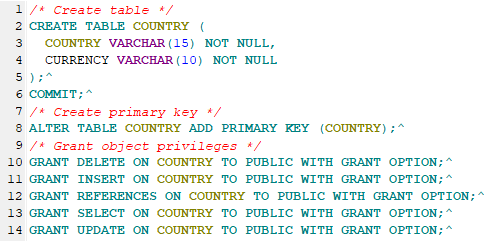
It is possible to save an SQL text to a file or print it. When printing SQL text or saving it to RTF or HTML documents, the syntax highlighting and colors are kept.
Smart highlighting
The editors support so called smart highlighting: code elements are highlighted through all current document if their text matches text of the selected fragment. The colors and some other properties are customizable.

Clickable objects
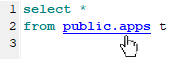
If you press and hold Ctrl and move the mouse over the SQL text at the same time, the Database Tour tries to analyze the words under the mouse. If a word under the mouse is recognized as a special object which can be processed by the application in the current context, it becomes a hyperlink. If you click the link, a certain action is done to the object depending on its type:
- if the word is a a name of a database object (table, view, stored procedure and several others), the Database Tour opens it in a separate window;
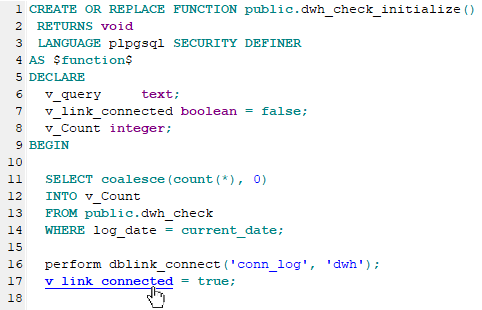
- if you are editing a stored procedure or anonymous block, and the clicked word is a name of a parameter or variable, you will be moved to the parameter/variable definition, which is especially convenient when viewing or editing large code;
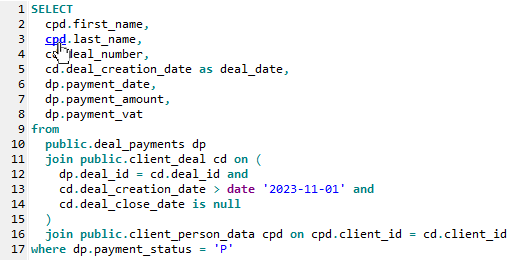
- if the word is a SQL alias of a database table, you will be moved to the place, where the table is specified in the code; it is useful when your SQL command is large or complicated.
You can customize the usage of SQL hyperlinks by the corresponding options of SQL Editor.
SQL token hints
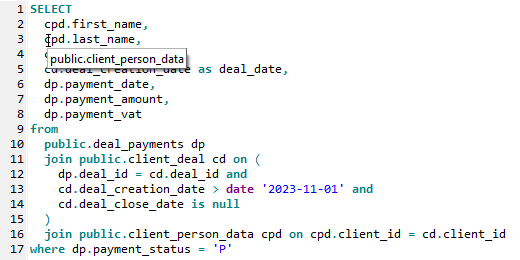
If you slightly move the mouse over the SQL text, the Database Tour can show you some info about the token under the mouse, for example, when the token is a table alias or stored procedure variable.
Stored procedure variable hint shows the type and default value of the variable:
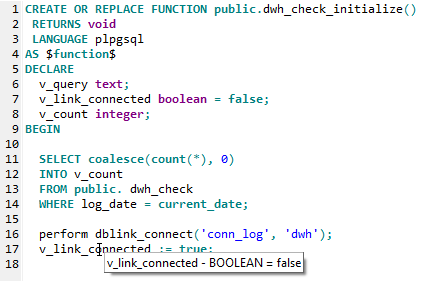
Table alias hint shows the full name of the used database table:
You can customize the usage of SQL token hints by the corresponding options of SQL Editor.
See also